Alpha Anywhere Control Panel
Description
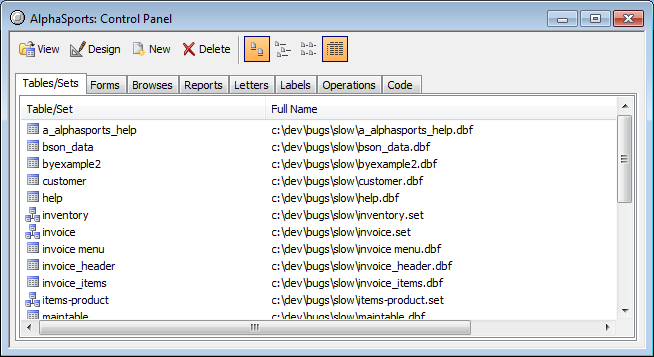
When using Alpha Anywhere, you work with one database at a time. The database Control Panel is a tabbed interface that organizes the objects in your database. There are several different views of the Control Panel, that can be called by clicking on the appropriate button on the system toolbar.

and filenames and file modification dates.
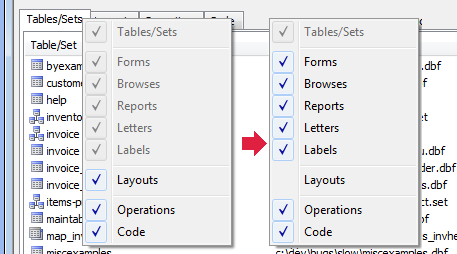
The Control Panel has two modes. In one mode the Layouts tab replaces the Forms, Browses, Letters, and Labels tabs. You can switch between the two modes by right clicking on any of the tabs and selecting or deselecting the Layout tab.
The Control Panel is made up of several pages, each of which has a folder-like tab at the top. To view a page, click its tab. On each page you'll see item names and icons representing database objects.
Table Icon

Set Icon

Form Icon

Browse Icon

Report Icon

Letter Icon

Label Icon

Operation Icons


Menu icon

Toolbar icon

Script icon

Function Icon

The Control Panel buttons, located above the Control Panel tabs, execute specific commands based on the selected database object.
Control Panel Buttons
View
Opens the selected object for viewing.

Design
Opens the selected object in Design Mode.

New
Opens the New Object Genie for creating a new object.

Delete
Deletes the selected object.

You use the Control Panel to navigate through the database objects and perform tasks. For example, to view a Form, you can do the following steps:
In the Control Panel, click the Forms tab. A list of forms for the current database appears.
Click on the form you want to view and click the View button.
That is the basic method for starting tasks in Alpha Anywhere: Navigate using the Control Panel and select the object with which you want to work.
Gray Table Icons
Gray table icons appear when Alpha Anywhere knows that certain tables belong in the database, but Alpha Anywhere cannot find them either in the current folder or in the physical path that existed when they were first added to the database. Using a file manager to move copies of tables into a database folder does not make them part of the database. Alpha does not scan all tables in the database folder and automatically assume that they are part of the current database. You must add tables and sets to the database from the Tables/Sets tab of the Control Panel. To see the path that Alpha Anywhere is using to find a table or set, display the Tables/Sets tab of the Control Panel and click .

Control Panel Objects
You can rename, duplicate, or copy any Control Panel object. For example, copy a custom menu from one database library to another, duplicate a script, rename a function, or copy a form from one table's dictionary to another.